
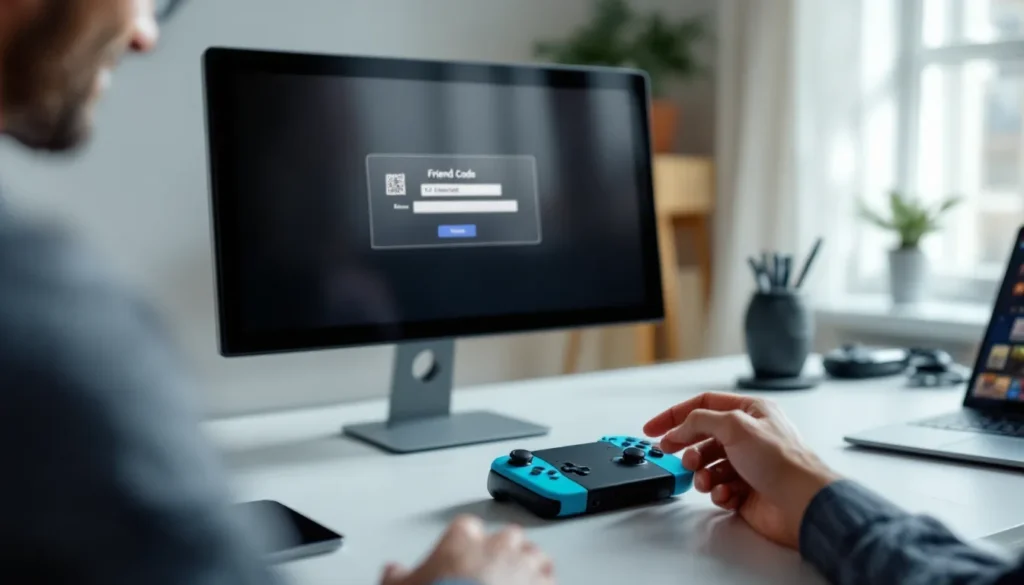
Nintendo Switch friend codes are one of the core features that make the console’s social ecosystem work. Whether you’re jumping into your first online multiplayer session or you’ve been gaming for years, understanding how friend codes work is essential if you want to connect with others, squad up for cooperative games, or simply keep in touch with your gaming crew. The process has evolved since the Switch launched in 2017, and while Nintendo has added multiple ways to connect with other players, friend codes remain one of the most straightforward and reliable methods. This guide breaks down everything you need to know about Nintendo Switch friend codes in 2026, from finding yours and adding others, to managing your friends list and troubleshooting common issues.
Key Takeaways
- A Nintendo Switch friend code is a unique 12-character alphanumeric identifier that works like a digital ticket, allowing you to connect with other players quickly without remembering complex usernames.
- You can find your Nintendo Switch friend code in User Settings > Friends on your console or through the Nintendo Switch Online mobile app, and it remains stable unless you factory reset your console.
- Adding friends via Nintendo Switch friend codes requires only typing the 12-character code on your console or app, and both players don’t need to add each other simultaneously for most multiplayer games to work.
- Nintendo Switch Online subscription is required for most online multiplayer games (starting at $20/year), though some titles like Fortnite and Splatoon 3 offer free online play without a paid subscription.
- Always share your Nintendo Switch friend code thoughtfully by mentioning which games you play in gaming communities, avoiding public personal accounts, and using dedicated Discord channels when available to stay safe.
- If a friend code addition fails, restart your Switch, verify your internet connection, check for console updates, and ensure parental control restrictions aren’t blocking incoming friend requests.
What Is A Nintendo Switch Friend Code?
A Nintendo Switch friend code is a 12-character alphanumeric identifier unique to each console. It works like a digital friend request ticket, instead of searching by username (though you can do that too), you share this code with someone else, and they can add you directly without needing to remember a complex username.
Think of it as Nintendo‘s equivalent to a phone number for your console. Every Switch has one, whether it’s a standard Switch, Switch Lite, or Switch OLED model. This code doesn’t change unless you factory reset your console, so it’s stable and reliable for long-term connections.
The beauty of friend codes is their simplicity. They cut through the noise of usernames and nicknames, reducing friction when you want to connect with someone quickly. If you’re at a friend’s house and want to add them, you swap codes in seconds. No memorizing usernames, no typos ruining the connection. That said, friend codes aren’t your only option anymore, Nintendo has expanded the social infrastructure significantly since the Switch’s launch, so depending on your preferences, there are several ways to connect.
How To Find Your Friend Code
Finding your friend code takes less than a minute, and you have two main routes: your console itself or the Nintendo Switch mobile app. Both are equally valid, though the app route is handy if you’re away from your Switch.
On Your Nintendo Switch Console
Navigate to your User Settings on the Home screen. Press the X button to open the menu, then select Settings from the list. Scroll down to Friends and tap it. You’ll see an option labeled Friend Code, tap that, and your code displays front and center. Your code is the 12-character string (a mix of letters and numbers). You can also see a QR code right next to it, which we’ll talk about later.
A pro tip: you can take a screenshot of this screen by pressing the Capture button on the left side of your controllers. This makes sharing your code easier since you can text the image to friends instead of typing out all 12 characters.
Through The Nintendo Switch App
If you’ve downloaded the Nintendo Switch Online app on your phone (iOS or Android), open it and tap your profile icon in the bottom-right corner. Select Friend Code, and it displays there. The app also shows your QR code, so if you’re with someone face-to-face, they can scan it directly from your phone to add you instead of typing. This is especially convenient at conventions, tournaments, or gaming meetups where you’re connecting with multiple people rapidly.
How To Add Friends Using Friend Codes
Once you have a friend code (yours or someone else’s), the next step is straightforward. You can add friends through your console or the mobile app.
Adding Friends Directly On Console
On your Switch, go to User Settings > Friends > Add Friend. You’ll see several options, including Friend Code. Select that option, and you’ll be prompted to enter the 12-character code. Type it carefully, spaces don’t matter, but the letters and numbers must match exactly. Once you hit OK, the system sends a friend request to that code’s owner.
Note: Both players don’t need to add each other simultaneously. If Player A sends a request to Player B, Player B doesn’t have to reciprocate for multiplayer to work in most games. But, some games and features (like inviting directly to a game session) work better when the friendship is mutual. It’s always worth becoming mutual friends if you plan regular sessions together.
Adding Friends Via The Mobile App
The Nintendo Switch Online app offers a similar experience. Open the app, go to Friends, and tap the + button. Select Friend Code and enter the code. The app will validate it and send the request. This route is convenient if you’re not near your console or want to add multiple friends in one sitting.
One advantage of the app: if you tap on someone’s profile after adding them (even before they accept), you can see which compatible games they own, which helps you figure out what titles you can actually play together. This is helpful for planning your next co-op session.
Alternative Ways To Add Friends On Switch
Friend codes are reliable, but they’re not your only option. Nintendo has built in several other methods to connect, each with its own strengths.
Searching By Username Or Nickname
If someone shares their username or nickname instead of a friend code, you can add them that way too. Go to User Settings > Friends > Add Friend and select Search by Username or Nickname. Type their name and search. This method is slower than a friend code (usernames can be common, so you might get multiple results), but it’s useful when you don’t have the code handy. Make sure you’re adding the right person, usernames can be deceptive, so if you’re unsure, ask them to confirm their profile picture or other details.
Connecting Through Nintendo Network ID
For players who’ve been with Nintendo since the Wii U era, they might still have a Nintendo Network ID (NNID). You can search by NNID on the Switch, though this method is becoming less common as older players migrate to Nintendo Accounts. If someone gives you their NNID, use Add Friend > Search by Username or Nickname and enter the NNID. It’ll pull up their Switch profile if it’s linked.
Adding Local Players Nearby
If you’re gaming in the same room or at a local event, Switch supports adding friends through local wireless. Go to User Settings > Friends > Add Friend and select Search for Local Users. Your Switch will scan for nearby consoles and display them. This is perfect for LAN parties, tournaments, or casual meetups where you want to connect without exchanging codes or usernames. The range is typically around 30 feet in open space, though walls and interference can reduce it.
Sharing Your Friend Code Safely
While friend codes are designed to be shared, there are a few smart practices to keep your online experience positive and secure.
Privacy Considerations
Friend codes themselves don’t expose personal information, they’re just identifiers tied to your console. But, once someone adds you, they can see your nickname, profile picture, and which games you’re playing (if you’re online). For most people, this is fine, but if you value privacy, be selective about who you add.
Nintendo Switch doesn’t require you to use your real name as your nickname. Many players use gaming handles instead, which adds a layer of separation. If you’re worried about privacy, consider using a nickname that doesn’t reveal personal details, and adjust your Friend Settings to control who can see you’re online or what you’re playing.
Another thing: friend codes don’t open you up to account hacks or security breaches. Your code is just a contact identifier. Your account security depends on your Nintendo Account credentials and two-factor authentication (which you should enable if you haven’t already).
Best Practices For Sharing Online
When sharing your friend code online, on Reddit, Discord, gaming forums, or social media, you’re broadcasting it to strangers. This isn’t inherently dangerous, but it does mean random people can send you friend requests. Most are benign, but if you receive requests from accounts with no profile picture, no activity, or suspicious behavior, you can simply decline or block them (more on blocking in the next section).
If you’re sharing your code in a gaming community or forum, it’s helpful to mention which games you play or your time zone. This attracts players you’re more likely to connect with. For example: “Looking for Splatoon 3 teammates in EST, friend code: SW-XXXX-XXXX-XXXX.” You can also use platforms like Game Rant, which regularly publishes gaming guides and news, as a resource for finding communities aligned with your interests.
On platforms like Discord, many gaming communities have dedicated channels for sharing friend codes, which is safer than posting them publicly on your personal accounts. Use those channels when available.
Playing Games With Friends
Friend codes are just the first step. The real fun starts when you’re actually playing together.
Online Multiplayer Setup
Once you’ve added a friend, most online multiplayer games make it easy to invite them or join their lobbies. The exact process varies by game, but here’s the general flow: launch a multiplayer-enabled title, navigate to the multiplayer or online menu, and look for an Invite Friends or Join Friend’s Lobby option. Some games pull directly from your Switch friends list, so you can invite anyone you’re friends with without leaving the game.
One crucial detail: Nintendo Switch Online (the paid subscription service) is required for most online multiplayer games. Basic subscription ($20/year for standard or $50/year for Expansion Pack) covers online play in most titles. There are exceptions, games like Fortnite and Splatoon 3 don’t require the subscription for online multiplayer, but the vast majority do. If you’re planning to play online with friends regularly, grab a subscription.
Internet speed matters too. Most online games on Switch are stable on a 5 Mbps connection, but 10+ Mbps is ideal. If you’re experiencing lag or disconnects, check your connection speed through System Settings > Internet > Test Connection. For fast-paced games like fighting games or shooters, a wired connection via a USB adapter is more stable than WiFi, though WiFi usually works fine for slower-paced titles.
Local Co-Op And Handheld Play
Not all gaming requires internet or even friend codes. If you’re in the same room, many Switch games support local co-op using a single console and multiple controllers (called handheld mode or docked mode co-op). Games like Mario Kart 8 Deluxe, Super Smash Bros. Ultimate, and Mario Party Superstars are perfect for this.
Local wireless (not the same as adding local friends) also lets you connect multiple Switch consoles in the same room without internet. This is essential for competitive gaming or larger groups. Many party games and competitive titles support local wireless multiplayer, which is fantastic for tournaments or gatherings.
For games with extensive multiplayer campaigns, like Monster Hunter World on Switch or the new Mario RPG titles, you can often switch between solo and co-op modes on the fly. Having friends added just makes inviting them to your session seamless. You can also check titles like Twinfinite for detailed multiplayer guides for specific games if you need step-by-step instructions.
Troubleshooting Friend Code Issues
Sometimes things don’t go smoothly. Here’s how to fix the most common friend code problems.
Can’t Add Friends With Friend Codes
If you’re typing a friend code and the system rejects it, double-check the code for typos. Codes are case-insensitive (uppercase and lowercase letters both work), and spaces don’t matter, but the actual characters must match exactly. A single wrong digit and it won’t go through.
If the code is correct but the system still rejects it, try a few things:
- Restart your Switch: Power it off completely, wait 30 seconds, and turn it back on. Simple, but effective.
- Check your internet connection: Go to System Settings > Internet and ensure you’re connected. Friend code additions require internet.
- Update your console: If your Switch is outdated, it might have connectivity issues. Go to System Settings > System > System Update and check for updates.
- Wait a few minutes: Sometimes Nintendo’s servers are temporarily overloaded. Try again in a few minutes.
If the person whose code you’re adding has a parental control restriction on their account, they might be blocked from receiving friend requests. Have them check their Parental Controls settings if they suspect that’s the issue.
Connection And Network Problems
If you’ve added friends successfully but can’t play together online, the issue is usually network-related, not friend code–related.
First, test your NAT Type through System Settings > Internet > Test Connection. NAT Type A or B is ideal for online gaming: Type D or F indicates potential issues. If you’re Type D or F, try these fixes:
- Restart your router: Unplug it for 30 seconds, plug it back in.
- Move closer to your router: Distance and walls degrade WiFi signal. A wired connection is more reliable if possible.
- Forward ports on your router: This is more advanced, but many Switch games list recommended ports to forward. Check your game’s manual or Game Informer for port-forwarding guides.
- Disable any VPN: If you’re using a VPN, disable it. Some restrict gaming connections.
If everything checks out on your end and you still can’t connect to a friend, ask them to verify their connection too. Sometimes the issue is on their side. You can also try connecting to a different game to isolate whether the problem is with a specific title or your general connection.
Conclusion
Nintendo Switch friend codes remain one of the fastest, simplest ways to connect with other players on the platform. Whether you’re swapping codes with someone locally or sharing them in online communities, the process is straightforward once you know where to look and how to execute it.
Beyond friend codes, the Switch’s social ecosystem offers flexibility, you can search by username, connect locally, or link Nintendo Network IDs. The key is choosing what works best for your situation. For quick, one-off connections or when you’re meeting someone in person, friend codes are hard to beat. For ongoing friendships or larger communities, having multiple players searchable by name and coordinating through Discord or other platforms works better.
Remember to share your code thoughtfully, manage your friends list to keep things tidy, and don’t hesitate to block or remove anyone who’s not making your gaming experience better. And if you run into technical snags, the troubleshooting steps here should get you back online quickly. With friend codes dialed in, you’re ready to Unlock the Ultimate Gaming Experience: Verizon Nintendo Switch Connectivity Tips and start gaming with your crew. Happy gaming.