
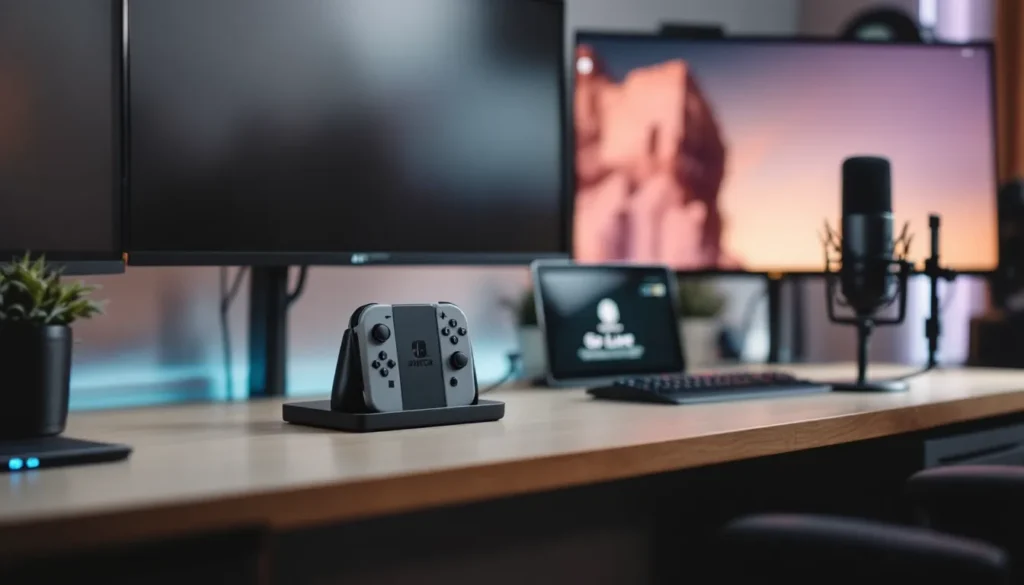
Discord has become the go-to platform for gaming communities, and streaming your Nintendo Switch gameplay directly to friends and followers is easier than ever. Whether you’re playing the latest indie hit, grinding through a competitive multiplayer session, or just vibing with Zelda, Discord’s built-in streaming tools and third-party solutions make it simple to share your gameplay in real time. This guide covers everything from the easiest plug-and-play methods to advanced OBS setups, so you can pick the approach that fits your setup and audience. If you’ve been sitting on the sideline wondering how to stream Nintendo Switch on Discord, you’re about to unlock a whole new way to connect with your gaming community.
Key Takeaways
- Discord’s native streaming feature allows you to broadcast Nintendo Switch gameplay directly to your server or friends without external platforms, requiring only a PC/Mac, stable 5+ Mbps upload speed, and a Discord account at least two weeks old.
- Choose your streaming method based on your needs: Discord native streaming for simplicity, a capture card for high-quality video, or OBS Studio for professional-grade control and customization.
- Optimize stream quality by using 720p at 60fps for smooth gameplay with lower bandwidth, 1080p at 30fps for sharper images, or 1080p at 60fps for competitive games if your 12+ Mbps upload allows.
- Switch to a wired Ethernet connection instead of WiFi for stable, low-latency streams and avoid common issues like disconnections and video pixelation.
- Maximize viewer engagement by narrating your gameplay, reading chat aloud, interacting with viewers by name, and streaming on a consistent schedule—commentary and community interaction matter more than video quality alone.
- Before going live, test your entire setup including audio-video sync, bitrate stability, and internet connection to avoid mid-stream drops that disrupt your audience experience.
Why Stream Your Nintendo Switch Gameplay on Discord
Streaming on Discord isn’t just for big-time streamers anymore. Discord’s native streaming feature lets you broadcast directly to your server or friends without needing external platforms like Twitch or YouTube. This means lower latency, direct interaction with your community, and a more intimate broadcast experience.
Many streamers use Discord as a secondary or primary streaming hub because of its simplicity and tight integration with gaming communities. Your audience is already on Discord chatting, so why not let them watch your gameplay without leaving the app? Plus, Discord’s streaming doesn’t require verified status or follower counts, anyone can go live instantly.
Streaming your Switch also adds accountability and fun to your gaming sessions. Playing through a tough boss rush hits different when you’ve got friends watching and cheering (or laughing at your failures). Competitive players use Discord streams to share strats with teammates, speedrunners showcase their runs live, and casual players just enjoy the social aspect of gaming together in real time.
System Requirements and Prerequisites
Before you hit that “Go Live” button, make sure your hardware and accounts are ready. Discord streaming has minimal requirements compared to traditional streaming platforms, but you’ll still need the right gear to avoid choppy streams and connection issues.
Hardware You’ll Need
You’ll need at least one of the following to start streaming:
- Nintendo Switch console (original, OLED, or Switch Lite, though Lite is handheld-only and has no dock output)
- Computer (PC or Mac running Discord)
- HDMI cable and capture card (if using Method 2 or 3)
- USB-C cable (for Switch Lite if you’re capturing via USB)
- Router and stable internet (5 Mbps upload minimum, 10+ recommended for quality streams)
The Nintendo Switch Lite doesn’t have a TV dock or HDMI output, so you’ll need a USB capture device like the Elgato HD60 S+ or a portable capture solution if you want to stream from Lite hardware.
If you’re capturing directly from a docked Switch, an HDMI splitter or capture card handles the video feed. A USB hub can help manage cables without constantly plugging and unplugging devices.
Software and Account Setup
- Discord account with desktop app installed (mobile Discord doesn’t have streaming)
- Latest Discord app (update to get access to streaming features)
- OBS Studio (free, optional but recommended for advanced setup)
- Capture card software (if using a capture card: most come with driver software)
- Nintendo Switch system update (keep your Switch on the latest firmware)
Make sure your Discord account is at least two weeks old and doesn’t have suspicious activity flagged. New accounts sometimes have streaming restrictions. Also, verify your email on Discord, this unlocks streaming for most accounts.
Method 1: Streaming Directly Through Discord on Windows and Mac
This is the simplest method if you’re running Discord on a PC or Mac. Discord’s native “Go Live” feature lets you stream your desktop, specific applications, or even a connected Switch console directly to your server or friends. No extra software needed.
Step-by-Step Setup Process
- Open Discord on your computer (not mobile, mobile doesn’t support streaming).
- Join or create a voice channel where you want to stream.
- Click “Go Live” or find the green screen icon in the voice channel.
- Select your capture source, choose “Screen” to share your desktop or “Application” if you’re running an emulator or streaming software.
- Adjust resolution and frame rate, Discord defaults to 1080p at 30 fps, but you can lower it to 720p at 60 fps if your upload speed is tight.
- Share the link so viewers can click and watch.
- Click “Stop Streaming” when you’re done.
For direct Switch streaming, you’ll need an HDMI-to-USB capture card that appears as a video input on your computer. The Switch output feeds into the capture card, which then appears as a camera/video device in Discord’s source selector.
Optimizing Your Stream Settings
Discord stream quality depends on your upload speed and the settings you choose. Here’s what most streamers aim for:
- 720p at 60 fps: Smooth gameplay, lower bandwidth (5-8 Mbps)
- 1080p at 30 fps: Sharper image, uses more bandwidth (8-12 Mbps)
- 1080p at 60 fps: Ideal for competitive games, needs 12+ Mbps upload
Test your upload speed at howtogeek.com’s speed test guide to see what your connection can handle. If you’re streaming on WiFi, switch to a wired Ethernet connection, it’s worth the cable run.
Turn off Discord notifications during streams to avoid chat pings interrupting the audio. Mute any background apps that might hog bandwidth. If your Switch is docked and capturing over HDMI, make sure the capture card drivers are installed and the device is set as your default video input in Discord settings.
Method 2: Using Capture Cards for High-Quality Streams
If you’re serious about stream quality and plan to go live regularly, a capture card is the gold standard. Capture cards bypass your computer’s display and pull video directly from the Switch’s HDMI output, resulting in clearer, lower-latency footage than screen-sharing.
Choosing the Right Capture Card
Capture cards vary widely in price and performance. Here’s what to look for:
- Resolution support: 1080p60 minimum (4K is overkill for Discord, but nice for archiving).
- Passthrough: Most modern cards output video to a monitor simultaneously, so you’re not streaming blind.
- Latency: Sub-100ms latency is standard: anything under 50ms is excellent.
- USB speed: USB 3.0 at minimum: USB 3.1 is preferred for stable captures.
Popular choices include the Elgato HD60 S+ ($200–$250, excellent for console gaming), AVerMedia LGX2 ($150–$200, good budget option), and Magewell USB Capture ($300+, professional-grade). For budget streamers, the Elgato Cam Link 4K ($170) is reliable.
Don’t buy a capture card without passthrough if you want to see your gameplay while streaming. Playing blind on your monitor ruins the experience and leaves you vulnerable to missing alerts or chat messages.
Connecting and Configuring Your Capture Card
- Connect the Switch dock’s HDMI output to the capture card’s HDMI input.
- Connect the capture card to a USB 3.0+ port on your computer.
- Install capture card drivers from the manufacturer’s website (Elgato, AVerMedia, etc.).
- Plug an HDMI cable from the capture card’s output to your monitor (passthrough).
- Launch Discord and go to User Settings > Voice & Video > Camera.
- Select your capture card from the dropdown (it’ll appear as a camera device).
- Test the feed by turning on your camera in a Discord call to preview.
- Join a voice channel and hit “Go Live”, your capture card is now your video source.
Some capture cards come with companion software (like Elgato Control Center). You can adjust color correction, brightness, and contrast there. Keep settings neutral unless you’re going for a specific aesthetic. If the video feed stutters, check that your USB cable is plugged into a powered hub or a direct motherboard port, not a monitor’s USB hub.
Method 3: Streaming via OBS Studio for Advanced Control
OBS (Open Broadcaster Software) is the streaming powerhouse used by professionals and enthusiasts. It gives you granular control over video sources, audio mixing, scene layouts, bitrate, and encoding, making it the best choice if you want broadcast-quality streams or plan to archive gameplay.
Installing and Configuring OBS
- Download OBS Studio from their official site (free, open-source).
- Install and launch the application.
- Run the Auto-Configuration Wizard (on first launch) to set bitrate and resolution based on your system.
- Choose “Optimize for Streaming” if asked.
- Select NVENC (Nvidia) or Apple Silicon encoding if your GPU supports it (lower CPU load than x264).
- Set output resolution to 1920×1080 (1080p) or 1280×720 (720p) depending on your upload speed.
- Set frame rate to 60 fps (or 30 if bandwidth is tight).
- Target bitrate: 6000 kbps for 1080p60, 4500 kbps for 1080p30, 3500 kbps for 720p60.
OBS’s learning curve is steeper than Discord native streaming, but it’s worth it for quality and flexibility.
Setting Up Your Nintendo Switch as a Video Source
- In OBS, click the “+” under Sources (lower left).
- Select “Video Capture Device” and create a new source.
- Choose your capture card from the dropdown.
- Click “OK” and the live Switch feed appears in your scene.
- Right-click the video source > Filters if you need color correction or noise reduction.
- Add a second source for your microphone (click “+” > Audio Input Capture) so your voice is heard.
- Arrange your scene: Drag the Switch video to fill the canvas, position your camera or webcam overlay if desired.
Test everything by recording a short clip (File > Start Recording) before you go live. Make sure audio sync is tight (no lip-sync issues) and the video is sharp.
Connecting OBS to Discord
- In OBS, click “Settings” (lower right).
- Go to “Stream” on the left.
- Service: Select “Discord” (or custom RTMP if Discord isn’t an option in your OBS version).
- Go to Discord and join a voice channel.
- Click “Share Your Screen” (not Go Live).
- Select “OBS Studio” or “OBS VirtualCamera” depending on your setup.
- Return to OBS and click “Start Streaming” (bottom right).
Alternatively, if OBS doesn’t directly integrate with Discord on your system, you can use a virtual camera plugin like OBS VirtualCamera (Mac/Linux) or use OBS’s RTMP streaming pointed at Discord’s custom RTMP endpoint (requires finding your stream key in Discord settings).
OBS also lets you create overlays with chat, alerts, and scene transitions. For a cleaner look, add borders, a facecam, or chat widgets in OBS, Discord viewers will see exactly what you’ve set up.
Troubleshooting Common Streaming Issues
Even with solid gear, streaming can throw curveballs. Here’s how to diagnose and fix the most common problems.
Audio and Video Sync Problems
Issue: Video plays but audio is silent or delayed.
Check these first:
- Verify the Switch’s audio output is set to HDMI (not headphones) in system settings.
- If using a capture card, reinstall drivers and reboot.
- In Discord settings, confirm your microphone and speakers are selected correctly.
- If audio is delayed, reduce OBS encoding bitrate slightly, overload can cause sync drift.
Issue: Your voice is loud but game audio is quiet (or vice versa).
In OBS, use the audio mixer (right panel) to adjust the volume of each source independently. Drag the fader for “game audio” (your capture card) and “mic” to balance them. Aim for -6dB to -3dB on the meter for comfortable listening.
Connection Drops and Latency
Issue: Stream keeps dropping or disconnecting.
- Switch to a wired Ethernet connection if on WiFi (WiFi is unstable for streaming).
- Check your ISP’s upload speed, if it dips below 5 Mbps, you’ll struggle. Contact support if speeds don’t match your plan.
- Close bandwidth hogs: Chrome, downloads, cloud backups, etc.
- Reduce bitrate in OBS or Discord settings (drop from 6000 kbps to 4500 kbps).
- Move your router closer to your computer or use a WiFi 6 router if upgrading is an option.
Issue: High latency or lag between your controller input and what viewers see.
Some delay is normal (500ms–1 second), but extreme lag is caused by:
- Overclocked or maxed-out CPU. Lower OBS encoding or Discord quality.
- Capture card not seated properly. Reseat the USB connection.
- USB hub overload. Plug the capture card directly into a motherboard USB port, not a hub.
Experience pro player settings and streaming guides to see how competitive gamers minimize latency on their setups.
Quality and Performance Optimization
Issue: Stream looks pixelated or blurry.
- Increase bitrate if your upload speed allows (check Dexerto’s streaming guides for recommended specs).
- Make sure 1080p mode is enabled on the Switch (Settings > TV Output).
- Use a shorter capture card cable, long cables can introduce noise.
- Update your graphics drivers (Nvidia, AMD, Intel).
Issue: Your computer is stuttering or lagging while streaming.
- Lower the OBS frame rate from 60 to 30 fps.
- Switch to hardware encoding (NVENC for Nvidia, VCE for AMD, Apple Silicon for Mac).
- Disable unused sources in your scene.
- Close background apps and disable Discord animations (User Settings > Accessibility).
If your PC is struggling, it might be underpowered for encoding and gaming simultaneously. A second computer running just OBS (with the capture card) is a pro-level solution, but most streamers improve performance by tweaking bitrate and encoding first.
Best Practices for Nintendo Switch Streaming on Discord
Setting up a stream is one thing: running a good stream is another. Here’s how to keep your audience engaged and your broadcast running smoothly.
Optimizing Your Stream Layout and Chat Management
Your stream layout should be clean and intentional. If you’re using OBS, a solid layout includes:
- Game video (primary, takes up 70–80% of screen)
- Chat overlay (small, corner-mounted, so viewers see what’s being said)
- Facecam (optional: 15–20% of screen if you include it)
- Alerts and notifications (muted for audio, or set to low volume)
Discord’s native stream doesn’t let you add overlays, so keep chat visible in a separate window on your monitor if you’re using Method 1.
Manage chat proactively:
- Set a chat slowmode if the audience gets rowdy (right-click channel > Edit Channel > Slowmode).
- Designate a mod to handle spam so you can focus on gameplay.
- Acknowledge viewers by name when they join, builds community.
- Disable embed links if spam becomes an issue (Settings > Server Settings > Safety).
If you’re streaming competitive games, disable video/audio capture of chat entirely if you’re sharing strats or callouts, you don’t want opponents seeing your call rotations or setup information if the stream is public.
Engaging Your Audience During Streams
Streamers who talk and interact pull way bigger audiences than silent grinding. Here’s why: gaming is social. People watch to be entertained and feel connected.
- Narrate your gameplay: Explain why you’re making decisions, what you’re trying to do, and what’s working or failing. This keeps viewers invested.
- Read chat aloud (if chat is slow enough). Respond to questions and shout-outs. People stay longer when acknowledged.
- Ask for input: “Should I go for the aggressive play or farm gold?” Viewers love having agency.
- Stream on a schedule: Go live the same days/times weekly so your audience knows when to tune in. Consistency builds a loyal base.
- Stream longer sessions: 30 minutes is fine, but 1–2 hours gives chat time to ramp up and new people to discover you.
Specifically for Switch games, Nintendo Switch games like. Whether you’re grinding ranks in competitive titles or playing story-driven single-player games, commentary makes the difference between a boring stream and one people actually want to watch.
Before you hit go live, announce it in your Discord server. Let people know what game you’re streaming, how long you plan to stream, and what to expect. First-time streamers often get zero viewers because nobody knew they were live, a simple “streaming now.” ping changes that.
If you’re testing Nintendo Switch connectivity options for your setup, make sure your internet is rock solid before you invite an audience. Nothing kills momentum like dropping mid-session because your WiFi couldn’t handle it. Wired connection = respect.
Conclusion
Streaming your Nintendo Switch on Discord is now genuinely accessible to anyone with a decent internet connection and the right setup. Whether you go with Discord’s native streaming (simplest), a capture card (highest quality), or OBS (most control), the barrier to entry has never been lower. You’re not locked behind platform verification or follower requirements, hit go live and you’re broadcasting.
The gear matters less than your content and engagement. A well-optimized 720p60 stream with active commentary will outperform a silent 1080p setup every time. Focus on talking, playing well, and building relationships with your viewers. The stream is a tool for connection, not just a broadcast of pixels.
Start with whatever method matches your current hardware: Discord streaming if you’ve got a PC/Mac, a capture card if you want to level up video quality, or OBS if you want granular control and professional polish. Test everything before inviting friends. Make sure audio and video are in sync, bitrate is stable, and your internet isn’t throttling.
Once you’re live, the work is just beginning, but that’s where the fun is. Gaming with an audience is a different experience. Go build your community, and don’t be shy about sharing that stream link. Your Switch gameplay deserves to be seen, and Discord is the perfect place to make it happen.