Getting your Nintendo Switch hooked up to a TV shouldn’t be complicated, yet plenty of gamers hit snags during their first setup. Whether you’re a longtime player just upgrading your rig or someone picking up their first Switch, connecting it to a television transforms your handheld experience into a full-screen gaming session. The good news? The process is straightforward when you know the fundamentals. This guide walks you through every step, from unboxing your dock to troubleshooting display glitches, so you can spend less time fussing with cables and more time actually playing. We’ll cover the official docking method, alternative setups for portable gaming, and practical tips to optimize your TV setup for peak performance.
Key Takeaways
- Connecting a Nintendo Switch to TV involves three main modes—docked mode outputs at 1080p via HDMI for the full-screen experience, while handheld and tabletop modes offer portable alternatives for different gaming scenarios.
- The official Nintendo Switch dock requires only four simple connections: HDMI to your TV, USB-C power to an adapter, and you’re ready to play—most connection issues stem from loose cables or incorrect TV input selection.
- A high-quality HDMI 2.0 cable is essential for reliable TV connectivity; worn-out or cheap cables cause 90% of reported black screen and signal loss problems, making this a worthwhile investment.
- Keep your dock in an open, well-ventilated area with 3-4 inches of clearance on all sides to prevent heat buildup and performance throttling, especially during demanding games.
- If your Switch won’t display on TV, troubleshoot methodically by confirming the correct HDMI input, power-cycling the console, replacing the HDMI cable, and testing different TV ports before assuming hardware failure.
- Third-party docks offer portable flexibility as alternatives to the official Nintendo Switch dock, but prioritize USB-C power delivery specs and proven reviews to ensure reliability.
Understanding Your Nintendo Switch Connection Options
Before you plug anything in, it helps to grasp the three main ways your Switch interacts with displays. Each mode serves different scenarios, and knowing the distinctions helps you pick the right approach for your gaming style.
Docked Mode vs. Handheld vs. Tabletop
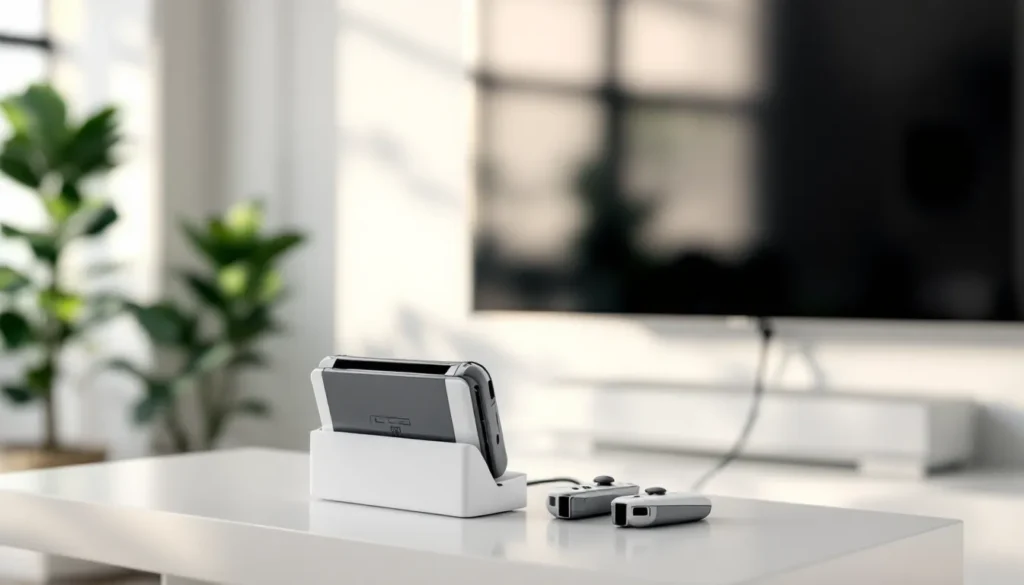
When you dock your Switch, the console outputs its display to an external TV or monitor via HDMI. This is the traditional “docked” experience and what most gamers picture when they think TV play. The Switch maintains full processing power in docked mode and upscales its output for larger screens, games run identically to handheld mode but look sharper on a bigger display.
Handheld mode is the inverse: you’re using the Switch’s built-in 6.2-inch screen. Your Joy-Con controllers detach, and you’ve got maximum portability. Many players never use docked mode and are perfectly happy with this setup for couch gaming or travel.
Tabletop mode sits in the middle. The kickstand on the back of the Switch lets you prop it up on any flat surface. You detach the Joy-Con and use them wireless while the built-in screen handles the display. This works great for local multiplayer (playing Mario Kart with friends, for instance) or for quick play sessions where docking feels like overkill.
Supported Display Types and HDMI Requirements
Your Switch can connect to any TV or monitor that accepts a standard HDMI input. That includes modern flatscreens, projectors, and older LED monitors, basically anything with an HDMI port from the last decade will work. The Switch doesn’t demand 4K or fancy refresh rates: it outputs at 1080p when docked, which is perfectly fine for most living room setups.
The official Nintendo Switch dock uses a standard HDMI cable (not proprietary). If your HDMI cable is older or you’ve experienced signal issues before, consider replacing it with a high-quality cable that supports HDMI 2.0 or higher. A cable rated for gaming eliminates potential bandwidth bottlenecks and reduces flicker or dropout problems. Most issues gamers report with black screens or unstable connections trace back to a worn-out or cheap HDMI cable, so this is worth the small investment.
Standard Docking: Connecting Your Switch Using the Official Dock
The official Nintendo Switch dock is your safest bet for reliable TV play. It’s designed specifically for the console and handles all the handshaking with your TV automatically.
What’s Included in Your Switch Box
When you unbox a new Switch, the dock comes as a single piece (not modular, like older designs). Inside the box you’ll find the dock itself, one USB-C power cable, one HDMI cable, and an AC power adapter rated for 39W output. Some regional variants or bundles might include extras like extra Joy-Con or a game, but the core components are always the same.
Inspect your cables before you set everything up. The USB-C power cable should look clean with no visible damage. The HDMI cable shouldn’t have bent connectors or crimped shielding. If anything looks suspect, test with a replacement before assuming your setup is at fault.
Step-by-Step Docking Instructions
Here’s the exact sequence for docking your Switch:
-
Place the dock on a stable, well-ventilated surface. Keep it away from direct sunlight and ensure there’s space around the back and sides for airflow. Don’t bury it in a media cabinet: heat buildup degrades performance and lifespan.
-
Connect the HDMI cable to the back of the dock. Look for the HDMI port on the rear panel. Push the connector in firmly until it clicks. This connection should never be loose.
-
Connect the other end of the HDMI cable to your TV’s HDMI input port. Note which input you’re using, you’ll need to select it on your TV. Many gamers use HDMI 1 or 2 for their primary gaming device for easier switching.
-
Plug the USB-C power cable into the dock’s port (the small port at the bottom back of the dock). This carries both video and power to the console.
-
Plug the AC adapter into a wall outlet and connect it to the other end of the USB-C cable. The dock should power on immediately: some models show a small indicator light.
-
Insert your Switch console into the dock, orienting it with the screen facing forward. The console should slide in smoothly and settle against the sides. The dock holds the Switch vertically, and you’ll hear a subtle click as it makes contact. Never force it: if it doesn’t slide in easily, check for obstructions or make sure the Joy-Con aren’t in the way.
Once docked, turn on your Switch. It detects the TV automatically and switches to docked output within a few seconds. You should see the home menu on your TV screen.
Ensuring Proper Power and HDMI Connections
The two critical connections are power and HDMI. Without proper power delivery, your Switch won’t charge while docked and may shut down mid-session. Without a solid HDMI connection, your TV won’t detect the console.
For power: The USB-C connection at the dock’s base must be snug. If your dock isn’t charging the console, reseat the cable by unplugging it, waiting five seconds, and plugging it back in. If that doesn’t work, try a different USB-C cable. Faulty cables are the culprit 90% of the time.
For HDMI: Make sure both connectors are fully inserted. A partially seated HDMI cable causes flickering, black screens, or sporadic signal loss. If you’ve got a signal issue, swap your HDMI cable with one you know works (from a PlayStation or other device) to isolate whether the cable or dock is the problem.
One pro tip: don’t rely on the dock’s USB-C port for charging other devices. It’s designed solely for the Switch, and using it for phones or tablets can cause inconsistent power delivery to the console.
Setting Up Your TV for Nintendo Switch Play
Once your Switch is physically connected, you need to tell your TV to display the signal and configure a few basic settings on the console.
Selecting the Correct HDMI Input
Your TV has multiple HDMI ports, usually labeled HDMI 1, HDMI 2, etc. The Switch can output to any of them, but your TV defaults to a specific input (often the last one used or HDMI 1).
To switch inputs on your TV: Pick up your TV remote and look for an “Input” or “Source” button. Press it and a menu appears showing available inputs. Highlight the HDMI port you plugged your Switch into and press enter. Your TV should display the Switch’s home screen within seconds.
If you don’t see anything, double-check that the Switch is powered on (press the power button on the console). Then verify that your HDMI cable is fully seated on both ends. If the TV still shows nothing, try a different HDMI port on your TV to rule out a bad port.
Pro move: If you’re a heavy console gamer with multiple devices, label your HDMI inputs. Most TVs let you rename inputs in settings. Calling HDMI 3 “Gaming” makes it faster to switch to your gaming setup.
Display Settings and Resolution Configuration
The Switch defaults to 1080p output when docked, which works with virtually every modern TV. You don’t need to tweak display settings to play, but a few adjustments optimize the picture.
On your Switch, navigate to System Settings (the gear icon on the home screen) and scroll down to “TV Settings.” Here you’ll find:
-
Resolution: Defaults to 1080p. If your TV is older and only supports 720p, the Switch auto-detects this and adjusts. Leave this on auto-detect unless you have a specific reason to change it.
-
RGB Range: This determines how the console sends color data to your TV. Most modern TVs default to “Auto,” which works fine. If your image looks washed out or too dark, try switching between “Auto” and “Limited” to see which looks better. Your TV’s picture settings can also affect this, so don’t be shy about tweaking your TV’s contrast and brightness separately.
-
Overscan: Some older TVs crop the edges of the display. If you notice the Switch’s menu is cut off at the edges, enable overscan adjustment here. The Switch provides guides to help you center the image properly.
Here’s the thing: most gamers never touch these settings. The Switch and modern TVs handle negotiation automatically. Only jump into TV settings if you notice image problems. When you Fixing the Nintendo Switch or other critical issues, display configuration might be a secondary concern, but it’s good to know where to look.
Troubleshooting Common Connection Issues
Even with perfect setup, something occasionally goes wrong. Here’s how to fix the most frequent problems without panic.
Black Screen or No Signal Problems
A black screen is the most common headache. Your TV shows nothing, or it displays “No Signal.”
The fix ladder:
-
Confirm your TV is set to the correct HDMI input. Use your remote to cycle through inputs and verify the Switch’s home menu appears on one of them.
-
Power off your Switch completely (hold the power button, select “Power Options,” then “Turn Off”). Wait 30 seconds, then power it back on. This resets the HDMI handshake, which solves ~60% of no-signal issues.
-
Unplug the HDMI cable from both the dock and TV. Inspect both connectors for bent pins or debris. Plug it back in firmly, making sure you hear a click at both ends.
-
Try a different HDMI port on your TV. If the Switch works on another port, your original port is likely faulty.
-
Replace the HDMI cable entirely. Borrow one from another device to test. HDMI cables fail constantly, and a bad cable looks perfectly normal.
-
If none of that works, try removing the Switch from the dock and re-inserting it. Sometimes a dust buildup on the dock’s connectors prevents proper contact.
If you still get nothing, your dock might be defective. Contact Nintendo support or consider a replacement dock.
Audio Issues and Speaker Compatibility
You see video on your TV but hear nothing, or audio cuts out intermittently.
Check your TV’s audio input first. Your TV receives both video and audio through the same HDMI cable. In your TV’s input or audio settings, verify that HDMI is set as the active audio source, not an external speaker system or the TV’s built-in speakers.
If you’re using an external speaker, soundbar, or receiver, make sure it’s connected to your TV via HDMI (ARC or eARC port) or a separate audio cable. The Switch doesn’t output audio independently of HDMI: it all travels through that single cable.
Audio through external speakers: If you’re using a soundbar or receiver between your TV and Switch, ensure the device is powered on. Some soundbars have a “Game” or “Auto” input mode that improves latency for gaming. Check your soundbar’s manual to enable this if available.
Current Can AirPods Connect to options are limited, the Switch can pair Bluetooth headphones like AirPods, but TV audio stays tied to your TV speakers or soundbar. You can’t split audio between TV speakers and Bluetooth headphones simultaneously.
Controller and Input Recognition Failures
Your Switch displays on the TV, but Joy-Con or Pro Controllers don’t respond.
For Joy-Con attached to the dock: Verify they’re seated properly in their rails. Push them up into the dock until you feel resistance and hear a click. The rails should grip the controllers firmly.
For wireless Joy-Con or Pro Controllers: On your Switch, go to System Settings > Controllers and Sensors > Disconnect Controllers. Then re-sync your controllers by pressing the sync button on the back of each one (a small button between the shoulder buttons). The Switch detects them within a few seconds.
If a controller still doesn’t respond, test it in handheld mode. If it works handheld but not with the TV setup, your dock’s controller connector might be dirty. Use a slightly damp cloth to gently clean the metal rails inside the dock, then dry thoroughly before re-seating controllers.
Pro Controllers occasionally lose connection in docked mode if the dock is placed in an enclosed space like a media cabinet. Obstruction kills the wireless signal. Keep your dock in open air, away from metal shelving or other electronics.
Alternative Connection Methods for Enhanced Gaming
The official dock works, but it’s not your only option. Third-party docks and wireless adapters offer flexibility for different gaming setups.
Third-Party Docks and Portable Solutions
Third-party docks come in two flavors: stationary docks (larger, desktop-style) and portable docks (smaller, travel-friendly). Both connect to your TV via HDMI just like the official dock, but they offer different perks.
Portable third-party docks (like USB-C docks from Nyxi, BASSTOP, or similar manufacturers) are compact, fanless, and ideal if you move your Switch between rooms or travel. They’re also cheaper than Nintendo’s official dock. The tradeoff? Some lack the build quality and cooling of the official dock, and Nintendo hasn’t certified them, so there’s a tiny theoretical risk of compatibility issues with future console updates. In practice, they’re reliable for most gamers.
These docks connect identically to the official model: HDMI to TV, USB-C power cable to an AC adapter, and your Switch slides in to dock.
Desktop docks with fans are bulkier but actively cool your Switch via integrated fans. Handy if you dock your console for 8+ hours at a time and live in a hot climate. The cooling reduces thermal throttling risk, though this is rarely a problem with the Switch’s modest hardware.
When shopping for a third-party dock, prioritize these specs:
- USB-C input with confirmed power delivery matching the official specs (minimum 15V/2.6A, ideally 39W)
- Solid metal or thick plastic construction (cheap plastic docks can warp)
- HDMI output labeled as HDMI 2.0 or higher
- Reviews from gamers, not tech reviewers (gamers test for actual longevity)
You can research options on sites like How-To Geek for detailed breakdowns of third-party dock reliability. Just avoid dirt-cheap docks under $15: they’re often defective or prone to overheating.
Wireless Display Adapters and Streaming Options
If you want to avoid cables altogether, wireless display adapters let you cast your Switch to a compatible TV without physical connections. These are niche but useful for specific setups.
Wireless casting adapters (like those using Miracast protocol or proprietary systems from companies like Elgato) transmit your Switch’s video signal to your TV without an HDMI cable. Latency is the catch: wireless adapters introduce delay between controller input and on-screen response, typically 100-200ms. For single-player games, this is invisible. For competitive shooters or fighting games, it’s a deal-breaker.
Wireless adapters also require a separate USB power source and sometimes demand installation of software on your TV or a dedicated receiver box. The complexity rarely justifies the convenience of ditching HDMI cables.
Streaming services like Twitch or YouTube let you broadcast your gameplay, but that’s output, not input. Your TV doesn’t display the Switch directly: you’re streaming to an audience, and the latency is even worse.
For 99% of players, a wired HDMI connection is the move. It’s lag-free, cheap, and reliable. Wireless is only worth it if you’ve got a very specific setup constraint that prevents HDMI routing.
When troubleshooting TV connectivity, the Unlock the Ultimate Gaming resource covers broader connectivity challenges beyond TV docking, including network setups for online play.
Optimizing Your Nintendo Switch TV Setup for Best Performance
Connected and playing? Great. Now let’s make sure your rig stays healthy long-term and performs at its peak.
Cooling and Ventilation Best Practices
The Switch generates modest heat even in demanding games like Tears of the Kingdom or Hollow Knight: Silksong. Docked mode forces the console to work harder than handheld mode, so cooling matters.
Placement is critical. Position your dock on an open shelf or desk surface with at least 3-4 inches of clearance on all sides, especially the back and top. Don’t nest it inside a media cabinet, and definitely don’t cover it with a blanket or magazine.
The official dock has vents on the sides and back. When blocked, heat traps inside and the console throttles its GPU and CPU to prevent damage. You’ll notice frame drops in graphically demanding games. Keep those vents clear.
In summer or if your room runs hot, consider a small USB-powered desk fan aimed at the dock’s back vent. It costs $10-20 and can extend your console’s lifespan by years. Just don’t point it directly at the screen: air should flow around the entire unit.
Also, avoid direct sunlight on the dock. UV exposure degrades plastic and creates localized heat that stresses internal components.
Cable Management and Safety Tips
A tangled mess of cables behind your TV looks bad and invites problems. Proper cable management keeps everything organized and safe.
Route cables away from heat sources. Don’t run your HDMI cable along the back of a radiator or behind a soundbar with internal fans. Heat degrades insulation and can cause signal loss.
Use cable clips or sleeves to bundle your HDMI, power, and any other cables together. Keep them separated from power cables if possible, power cables can generate electromagnetic interference that degrades HDMI signal.
Label your cables. Use small stickers or a label maker to mark which cable is the Switch’s HDMI and power. This saves massive headaches when you’re troubleshooting or relocating gear.
Never coil cables tightly around their connectors. Excessive pressure on HDMI connectors causes internal contact wear and eventual failure. Instead, use loose loops or cable ties with room to flex.
For the AC power adapter, keep it in a cool, open area. The adapter generates heat while charging, and trapping that heat reduces its lifespan. Don’t wrap the power cable around the adapter, and don’t bury it behind furniture.
When docking and undocking your console daily, use gentle, straight motions. Yanking or twisting the Switch as you pull it from the dock strains the dock’s internal connectors. This is especially true for USB-C ports, which are tougher than micro-USB but still susceptible to damage from repeated rough handling.
Finally, every 2-3 months, inspect your connectors. Look for bent pins on the HDMI cable (replace if found) and check the dock’s USB-C port for corrosion or debris. A quick visual inspection prevents most connection issues before they become problems.
Conclusion
Connecting your Nintendo Switch to a TV is genuinely simple once you understand the basics. Get the dock positioned, plug in HDMI and power, select the right TV input, and you’re playing. Most of the work is preventative: keeping vents clear, replacing worn cables, and organizing your setup so problems don’t crop up months down the line.
If you hit a snag, black screen, audio dropout, controller lag, work through the troubleshooting steps methodically. 90% of connection issues trace to a bad HDMI cable, a loose connection, or incorrect TV input selection. Swap cables, reseat connectors, and toggle your TV’s inputs before assuming hardware failure.
For players who dock their Switch daily, grab a quality HDMI cable and a portable dock if you travel. These small investments transform your setup from functional to bulletproof. You might also explore resources on gaming hardware reviews or console setup guides for deeper dives into display optimization and cable specs if you’re building a premium gaming station.
The Switch’s flexibility, handheld, tabletop, or docked, means you’re never locked into one setup. Experiment with what works for your space and playstyle. Once you’ve got your TV connection dialed in, you’ll stop thinking about the hardware and start thinking about the games. That’s the goal.