
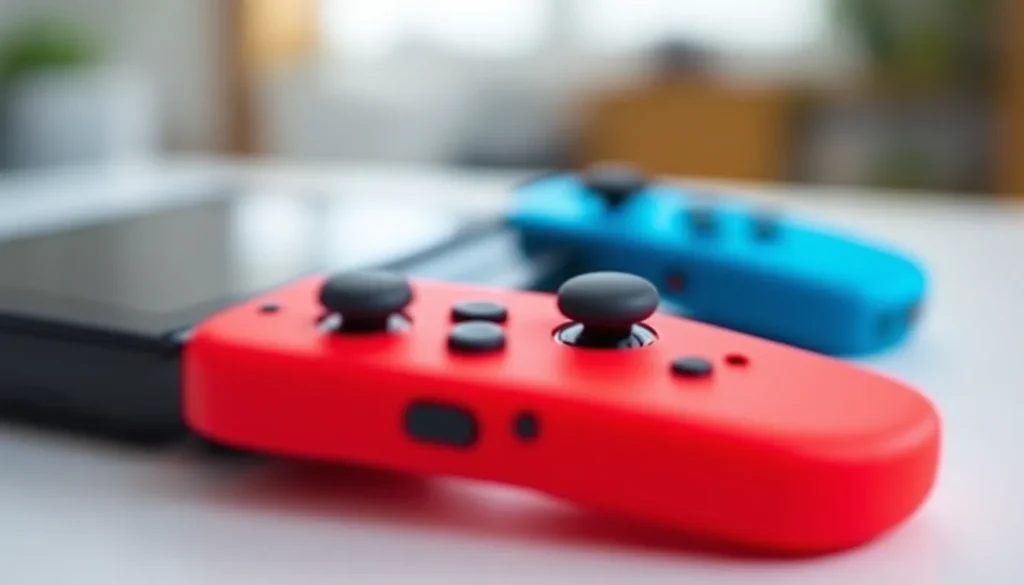
Joy-Cons are the beating heart of the Nintendo Switch experience. Whether you’re grinding through a single-player campaign, competing in online multiplayer, or just enjoying a casual gaming session, these compact controllers are in your hands, literally. But let’s be real: Joy-Con issues are legendary among Switch owners. Drift, connectivity problems, battery drain, they’re as common as finding a creeper in Minecraft. If you’re experiencing trouble with your Joy-Cons or just want to keep them running at peak performance, this guide covers everything you need to know in 2026. From diagnosing what’s going wrong to fixing it yourself or knowing when to call in the pros, we’ve got you covered.
Key Takeaways
- Joy-Con drift, the most common issue, can often be temporarily resolved through calibration, compressed air cleaning, or professional repair at $35-40 per controller.
- Regular maintenance including cleaning with isopropyl alcohol, proper storage away from heat, and rotating multiple Joy-Con pairs significantly extends controller lifespan.
- Recalibrating your Joy-Cons through System Settings improves responsiveness and can resolve perceived latency and drift symptoms without professional intervention.
- Joy-Con battery drain is usually caused by HD Rumble intensity or wireless interference rather than battery failure, and can be tested by disabling rumble in game settings.
- The Nintendo Switch OLED model’s updated Joy-Cons offer improved stability and reduced drift compared to earlier iterations, making them worth the investment if purchasing new controllers.
- Understanding whether to repair or replace depends on the issue type—software problems are free fixes, while hardware failures costing over 50% of a new Joy-Con’s price warrant replacement.
Understanding Joy-Con Technology and Design
What Are Joy-Cons and Why They Matter
Joy-Cons are Nintendo’s proprietary wireless controllers for the Nintendo Switch, and they’re genuinely innovative. Each controller features motion controls, HD rumble, and an IR sensor packed into a grip barely larger than your thumb. The genius is how modular they are, snap them to the sides of the Switch, use them separately, or attach them to the optional grip accessory.
Why do they matter? Joy-Cons define how you interact with your Switch. They’re essential for games that rely on gyro aiming, like The Legend of Zelda: Breath of the Wild, and their separation mechanic opens up multiplayer experiences that other platforms can’t replicate. When they work, they’re fantastic. When they don’t, your entire gaming experience suffers.
Joy-Con Variants and Editions
Nintendo has released Joy-Cons in multiple color schemes and special editions since the Switch’s 2017 launch. Standard options include red/blue, all black, all white, and gray. Special editions tie into major releases like Mario Red and Luigi’s Mansion themed sets.
Beyond colors, there’s the Joy-Con (L) and Joy-Con (R) distinction, the left has a capture button, the right has a home button. You can buy them individually if one breaks, which is actually a smart design choice. But, there’s also the Nintendo Switch OLED model that ships with updated Joy-Cons featuring better stability and reduced drift issues compared to earlier iterations. If you’re buying new Joy-Cons, the newer versions are worth the investment for durability alone.
Common Joy-Con Issues and How to Fix Them
Addressing Drift Problems
Drift is the nightmare scenario: your character walks forward without touching the stick, or your camera pans randomly. This happens when the joystick’s potentiometer, the component that reads stick position, wears out or accumulates dust. Nintendo’s official response has included free repairs and, in some regions, recalls, but they’re not keeping up with demand.
Quick fixes before professional help:
- Calibrate your Joy-Cons via System Settings → Controllers and Sensors → Calibrate Control Sticks. This recalibrates the stick’s center point and can temporarily reduce drift symptoms.
- Apply light pressure upward on the stick while playing, sometimes a mechanical issue needs a small nudge to settle.
- Use compressed air (not a regular straw) to gently blow into the seams around the stick base. This removes dust and debris.
- Avoid humidity and extreme temperatures that can warp internal components.
If these don’t work, drift is hardware-level damage. Nintendo offers paid repairs (around $35-40 per Joy-Con depending on region), or you can attempt DIY replacement if you’re comfortable with a soldering iron. The internet has detailed guides, but this voids warranty.
Fixing Connection and Pairing Issues
Joy-Cons dropping connection mid-game is infuriating. This usually stems from Bluetooth interference or a failed pairing.
Troubleshooting steps:
- Unpair and re-pair: Go to System Settings → Controllers and Sensors → Disconnect Controllers, then physically disconnect the Joy-Cons from the Switch. Power cycle everything and reconnect.
- Move closer to the Switch. Bluetooth range isn’t infinite. Metal objects and other wireless devices (microwaves, WiFi routers) cause interference.
- Check for interference: Move away from other electronics and retry.
- Update firmware: Ensure your Switch has the latest software (Settings → System → System Update). Firmware updates sometimes patch connection bugs.
If your Joy-Cons won’t pair at all, try holding the pairing button (the tiny button on the side, near the charging port) for 15 seconds until the lights flash. Hold the sync button on your Switch and try again.
Resolving Battery Drain Problems
Joy-Cons should last 20+ hours per charge under normal use. If you’re seeing single-digit battery percentages after a few hours, something’s wrong.
Causes and fixes:
- HD Rumble is intense. Games that use aggressive rumble (like Super Smash Bros. Ultimate) drain battery faster. This is normal, not a defect.
- Wireless interference makes the Joy-Con work harder to maintain connection, draining battery. Ensure you’re within range and away from interference sources.
- Calibration drift forces the controller to constantly correct stick position, consuming power. Re-calibrate via System Settings → Controllers and Sensors → Calibrate Control Sticks.
- Faulty battery cells. If all else fails and battery life is still terrible, the internal lithium battery may be dying. Replacement requires opening the controller and soldering in a new battery, which is labor-intensive but possible for DIY enthusiasts.
For most users, battery drain is usually caused by HD rumble or interference, not actual battery failure. Test by disabling HD rumble in a game’s settings and see if battery life improves.
Essential Joy-Con Maintenance Tips
Cleaning and Care Best Practices
Joy-Cons are magnets for dirt, dust, and grease from extended gaming sessions. Proper cleaning keeps them responsive and extends their lifespan.
What you’ll need:
- Isopropyl alcohol (70% concentration)
- Microfiber cloth or lint-free wipes
- Soft-bristled brush (old toothbrush works)
- Compressed air canister
- Cotton swabs for tight spots
Cleaning procedure:
- Power off and disconnect your Joy-Cons completely.
- Wipe the exterior with a microfiber cloth lightly dampened with isopropyl alcohol. Don’t saturate, moisture inside the controller is bad.
- Clean the trigger buttons and stick edges with cotton swabs and alcohol. These areas trap the most grime.
- Use compressed air to blow into seams and around the stick base, dislodging dust before it settles deeper.
- Let them dry completely before reconnecting (5-10 minutes is safe).
Avoid submerging Joy-Cons or using harsh soaps. They’re not waterproof, and internal damage from liquid is permanent.
Preventative Maintenance Strategies
A little prevention saves you hundreds in replacement costs down the line.
Store smart: Keep Joy-Cons in a clean, dry place away from direct sunlight and heat sources. A protective case or pouch prevents dust accumulation during storage.
Avoid extreme conditions: Don’t leave Joy-Cons in hot cars, near radiators, or in freezing cold. Lithium batteries degrade faster at temperature extremes.
Charge regularly: Don’t let Joy-Cons sit dead for weeks. A periodic charge, even if you’re not using them, keeps the battery healthy. Aim for 20-80% charge cycles if possible, as fully draining to 0% or constantly maintaining 100% stresses lithium cells.
Use a grip or case: Dropping your Switch isn’t uncommon. A protective grip or case absorbs shock and keeps Joy-Cons safer if your hands slip.
Rotate Joy-Cons: If you have multiple pairs, rotate which ones you use. This prevents one pair from wearing out prematurely from constant gameplay. Think of it like tire rotation on a car, spread the wear.
Optimizing Your Joy-Con Performance
Calibration and Settings Adjustments
Out-of-the-box, Joy-Cons work fine, but tweaking their calibration can make a noticeable difference in responsiveness and accuracy.
Stick calibration:
Go to System Settings → Controllers and Sensors → Calibrate Control Sticks. You’ll be guided through a simple process where you move each stick in circles and click it down. This resets the calibration to match your current hardware state, which is especially useful if you’ve replaced sticks or notice sensitivity changes over time.
Button and trigger calibration:
Jump into the same menu and select “Calibrate Buttons.” This ensures your buttons and triggers register at the right pressure points. It’s a quick sanity check that often solves perceived latency issues.
Motion and IR sensor calibration:
For games relying on motion controls or the IR sensor, check Controller Settings → Motion Controls. Some games let you recalibrate in-game, which is more accurate than system-wide settings. If gyro aiming feels off in Splatoon 3, re-calibrating mid-session often helps.
Enhancing Responsiveness for Gaming
Beyond calibration, several settings tweak Joy-Con responsiveness for competitive gaming or precision-demanding titles.
Dead zone adjustment: Some games let you adjust stick dead zone (the amount of stick movement required to register input) in their settings menu. A smaller dead zone = faster response, but too small causes drift-like symptoms. For competitive play, explore your game’s control settings and find the sweet spot.
Stick sensitivity: Many games offer stick sensitivity sliders. Higher sensitivity = faster cursor movement. For shooters like Splatoon 3, higher sensitivity helps with flick shots. For precision platformers, lower sensitivity gives finer control.
Disable auto-aiming if available: Some games include aim assist tuning. Competitive players often lower or disable this for direct control. Casual players benefit from keeping it on.
Test with specific games: Responsiveness isn’t universal, what works for Mario Kart 8 Deluxe might feel sluggish in Hollow Knight. Spend time in each game’s settings menu to dial in your preferences. The complete guide to gameplay optimization often includes controller tuning advice for major releases.
Choosing the Right Joy-Con Setup for Your Gaming Style
Joy-Con Configuration Options
The beauty of Joy-Cons is their flexibility. There’s no one-size-fits-all setup.
Single Joy-Con per hand: Snap one to each side of the Switch. This works for most games and is the portable default. Motion controls are active, and the setup is compact.
Dual Joy-Con grip: Attach both Joy-Cons to the included grip accessory (or a third-party grip). This feels like a traditional controller and is ideal for intense gaming sessions. Your hands are more comfortable, and the larger profile makes precision easier. Games like The Legend of Zelda: Tears of the Kingdom benefit from this setup.
One Joy-Con per person (multiplayer): Each player uses a single Joy-Con. Perfect for party games like Mario Party Superstars or Super Smash Bros. Ultimate in casual modes. Limited comfort for long sessions, but fun for quick multiplayer.
Pro Controller alternative: The Nintendo Switch Pro Controller is optional but seriously worth it for competitive or long-form play. It has a traditional gamepad layout, better ergonomics, and identical connectivity to Joy-Cons. If you main fighting games or shooters, a Pro Controller is an upgrade. That said, Joy-Cons offer motion controls the Pro Controller lacks, which matters for Splatoon 3 or Ring Fit Adventure.
Accessory Recommendations and Alternatives
Grip accessories:
- Official Nintendo Switch Joy-Con Grip: Comes with the Switch. Solid, but bulky and blocks the charging port while in use.
- Third-party ergonomic grips: Brands like Hori, PowerA, and Satisfye make grips with better ergonomics, built-in kickstands, and integrated charging ports. These are excellent investments if you play handheld mode frequently.
Protective cases:
- Controller cases: Silicone or plastic cases protect Joy-Cons from drops and dust. They add minimal bulk and are cheap ($10-15).
- Switch travel cases: For portability, a case that holds the Switch plus Joy-Cons keeps everything organized.
Alternative controllers:
If Joy-Cons frustrate you, the market has options. The Nintendo Switch Pro Controller is the official alternative, offering traditional gamepad ergonomics. Third-party controllers like PowerA Enhanced Wireless Controller mimic a traditional layout at a lower price, though they lack HD rumble and motion controls. For specific games like Mario Kart 8 Deluxe, the optional steering wheel accessory adds immersion (though it’s just a plastic shell, doesn’t enhance performance).
The top Nintendo Switch accessories roundup often highlights new third-party options worth considering if you’re frustrated with Joy-Cons.
Joy-Con Repair and Replacement Guide
When to Repair Versus Replace
A broken Joy-Con doesn’t mean throwing away your entire Switch. The decision to repair or replace depends on the issue and your comfort level.
Repair if:
- The issue is software-related (connection problems, firmware bugs). These are free fixes via recalibration or updates.
- The Joy-Con has minor wear (reduced battery life, loose triggers) but is still functional. Repairs cost $35-40 per controller through Nintendo.
- You’re comfortable with DIY repairs and the cost of replacement sticks or batteries ($5-20) is negligible.
- The Joy-Con is within warranty. Nintendo covers manufacturing defects for one year from purchase.
Replace if:
- Repair costs exceed 50% of a new Joy-Con’s price (around $30-40 per controller retail).
- Multiple issues compound (drift + battery drain + connection problems). A controller with multiple failures is dying.
- You’re risk-averse. DIY repairs void warranty and risk permanent damage if you slip up.
DIY Repairs and Professional Options
DIY stick replacement:
Joy-Con drift most commonly stems from worn potentiometers. Replacement sticks are available online for $5-15 per pair. You’ll need:
- Replacement joystick module
- Small Phillips screwdriver
- Soldering iron and solder (for some replacements)
- Tweezers and a steady hand
Disassembling Joy-Cons involves removing several screws and carefully disconnecting the battery ribbon cable. Tutorials on YouTube walk you through it, but one slip costs you a controller. If you’re not comfortable with a soldering iron, skip this.
Professional repairs:
Nintendo’s official service costs $35-40 per Joy-Con and takes 1-2 weeks. Send yours in via their website, and they’ll repair or replace depending on the issue.
Third-party repair shops (local electronics repair, gaming shops) sometimes offer faster turnaround (3-5 days) and competitive pricing. Quality varies, so check reviews first. Warranty implications differ, official Nintendo repairs maintain some protection: third-party repairs typically void remaining warranty.
Battery replacement:
Joy-Con batteries aren’t user-replaceable without soldering new ones in place. If your controller’s battery is genuinely dead (confirmed through all the troubleshooting steps above), professional replacement runs $25-40. It’s cheaper than buying new Joy-Cons in some regions.
When buying replacements:
If you’re past repair and buying new Joy-Cons, consider the newer versions shipped with the Switch OLED model. They have improved stick stability compared to launch Joy-Cons. Retailers like Amazon, GameStop, and Best Buy carry them. Used Joy-Cons from trusted resellers are cheaper but come with wear. New is safer if budget allows. You can also check current resale values if you’re offloading broken controllers.
Conclusion
Joy-Cons are robust, innovative controllers, when they’re working right. The reality is they’re prone to drift, and Nintendo’s design prioritizes portability over durability. But that doesn’t mean you’re stuck with broken controllers. Whether you’re tackling drift with compressed air, recalibrating for precision gaming, rotating pairs to prevent premature wear, or deciding between DIY fixes and professional repairs, the solutions are accessible.
The key takeaway: maintain your Joy-Cons proactively. Clean them regularly, charge them smartly, store them properly, and calibrate when responsiveness dips. These habits add years to their lifespan. And if something breaks, know your options, Nintendo repair, third-party services, or DIY replacement, before panic-buying new controllers.
Your Joy-Cons are one of your most-used gaming peripherals. Treat them well, and they’ll carry you through countless gaming sessions without interruption. With this guide in hand, you’ve got everything needed to keep them performing at their best throughout 2026 and beyond.